
Automation Actions - Vercel DevOps for Jira
Vercel DevOps for Jira adds three actions to the Jira Automation rule builder. This lets your team read Vercel deployment state, change environment variables and trigger changes on Vercel as part of any rule - on a schedule, on an issue transition, or on a manual trigger - without opening the Vercel dashboard.
Available actions
| Action | Type | What it does |
|---|---|---|
| Get Latest Vercel Deployment | Read | Fetches the latest deployment for a connected project and exposes its state, URL, branch, commit, and timestamps. |
| Trigger Vercel Redeployment | Write | Starts a new deployment for a connected project, optionally from the latest commit on the branch. |
| Set Vercel Environment Variable | Write | Creates or updates a plaintext environment variable on a connected project. |
Prerequisites
Automation Actions operate on a Vercel project that is connected to the Jira project the rule runs in. Before using them, make sure the app has a valid Vercel API token.
Adding an action to a rule
-
In your Jira project, go to Project Settings > Automation (or Automation from the project settings sidebar) and create or edit a rule.
-
Choose a trigger (for example Issue transitioned, Scheduled, or Manual trigger).
-
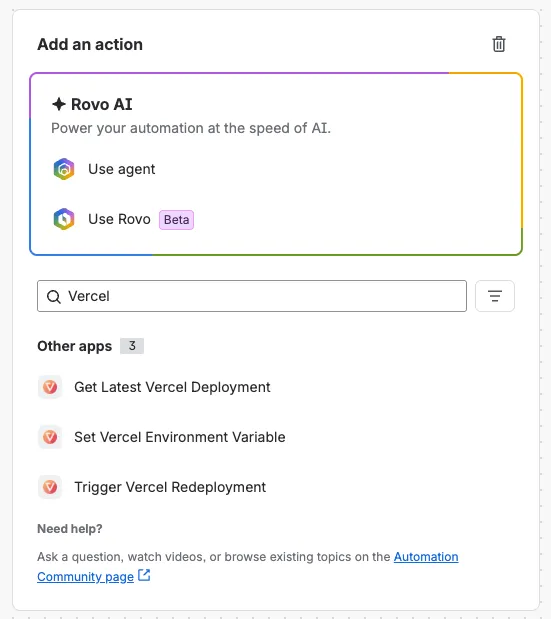
Add a new action and pick one of the Vercel actions from the list:
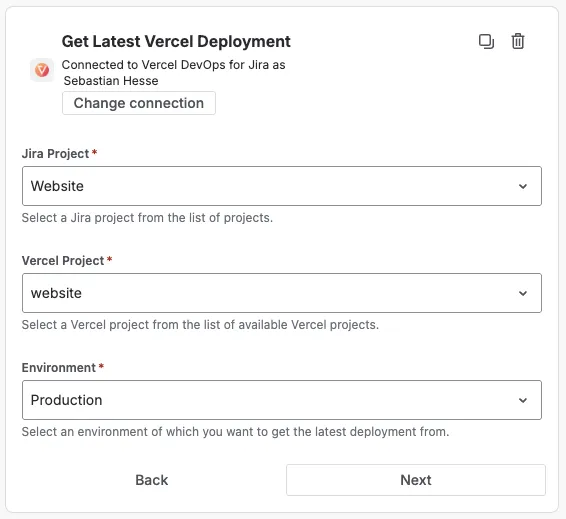
- Configure the action. Every action asks you to pick the Jira project and the Vercel project to operate on; the remaining fields depend on the action:
- Save and enable the rule.
Action reference
Get Latest Vercel Deployment
Reads the most recent deployment for the selected project and environment.
- Inputs: Vercel project, environment (
productionorpreview). - Outputs (available as smart values in later steps):
state,url,inspectorUrl,branch,commitMessage,commitSha,createdAt,environment,isReady,hasError.
Use isReady and hasError in a condition to branch on deployment health - for example, block a release transition when {{fetchedVercelDeployment.hasError}} is true.
Trigger Vercel Redeployment
Starts a new deployment for the selected project and environment.
- Inputs: Vercel project, environment (
productionorpreview), and a Use Latest Commit toggle. When off, the same commit that is currently deployed is redeployed; when on, the latest commit on the connected branch is used. - Outputs:
deploymentId,deploymentUrl,inspectorUrl.
The existing deployment tracking integration will update connected issues automatically as the new build progresses.
Set Vercel Environment Variable
Creates or updates a single environment variable on the selected project.
- Inputs: Vercel project, variable key (uppercase letters, digits and underscores; must not start with a digit), variable value, environment (
productionorpreview), and an optional comment. The value accepts Jira smart values such as{{issue.key}}, resolved when the rule runs. - Outputs:
variableKey,environment.
Using action outputs
Each action’s outputs are available to later steps in the same rule as Jira smart values. Each action has its own prefix:
| Action | Smart value prefix | Example |
|---|---|---|
| Get Latest Vercel Deployment | fetchedVercelDeployment | {{fetchedVercelDeployment.url}} |
| Trigger Vercel Redeployment | TriggeredVercelDeployment | {{TriggeredVercelDeployment.deploymentUrl}} |
| Set Vercel Environment Variable | UpdatedVercelEnvvar | {{UpdatedVercelEnvvar.variableKey}} |
For example, after fetching a deployment you can post a comment with the URLs:
Latest deployment fetched.
Deployment: {{fetchedVercelDeployment.deploymentUrl}}
Inspect: {{fetchedVercelDeployment.inspectorUrl}}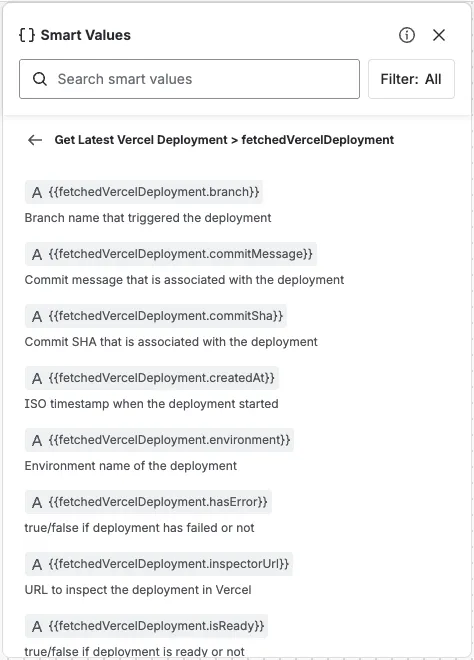
Authorizing the action (first use)
The first time a Vercel action runs, Jira asks you to authorize the app to act on your behalf. Until you do, the rule step cannot call Vercel. Open the rule (or the action’s configuration) and confirm the authorization prompt:
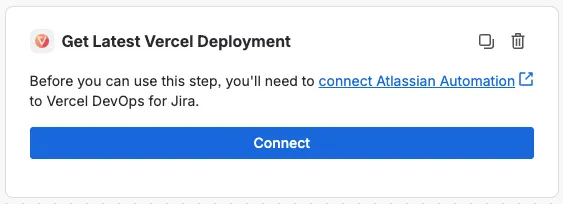
This is a one-time step per user - once confirmed, the action runs without further prompts.
Missing API token
If no Vercel API token is configured, the action shows an error when you try to set it up:
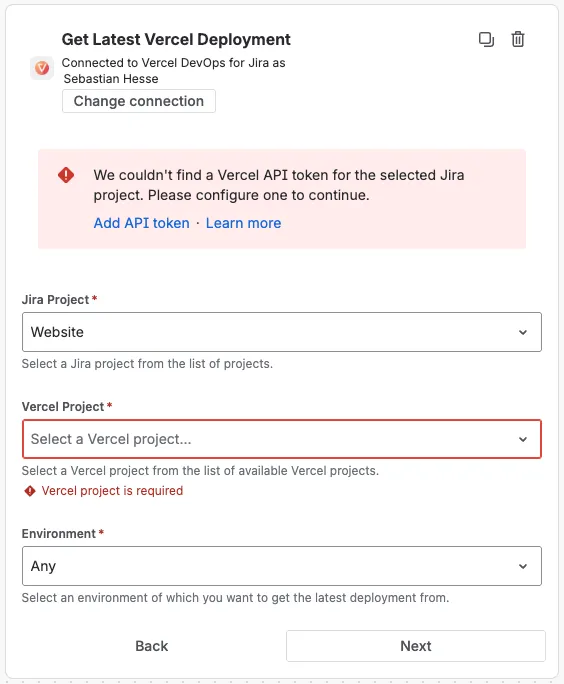
Add a token via the app’s settings and reopen the action to continue.
Example rules
Attach the current preview link when an issue enters QA
- Trigger: Issue transitioned to
In QA. - Get Latest Vercel Deployment - environment
preview. - Add comment:
QA build ready: {{fetchedVercelDeployment.url}} (branch {{fetchedVercelDeployment.branch}}, state {{fetchedVercelDeployment.state}}).
Redeploy production when a hotfix is marked Done
- Trigger: Issue transitioned to
Done, labelhotfix. - Trigger Vercel Redeployment - environment
production, Use Latest Commit on. - Add comment:
Production redeploy started: {{TriggeredVercelDeployment.deploymentUrl}}.
More end-to-end scenarios in your mind? Let us know if your process is not supported.