
Connect Vercel Projects - Vercel DevOps for Jira
For each Jira project in your Jira cloud instance, you can connect one or more Vercel projects to it. Each time a Vercel deployment is triggered by a commit that contains a Jira issue key of this project, the deployment is linked to the corresponding Jira issue in this project. This guide explains how to connect your Vercel projects to a Jira project.
-
Open the Jira project you’d like to connect Vercel projects to.
-
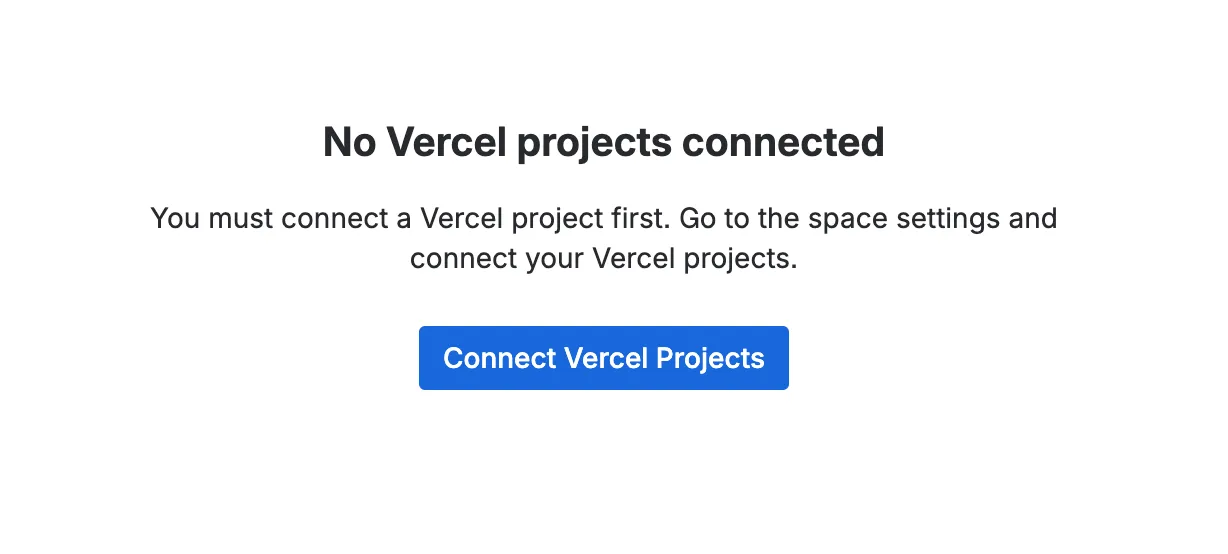
Open the “Vercel DevOps for Jira” app. If you haven’t connected any Vercel projects yet, you’ll see an empty state:
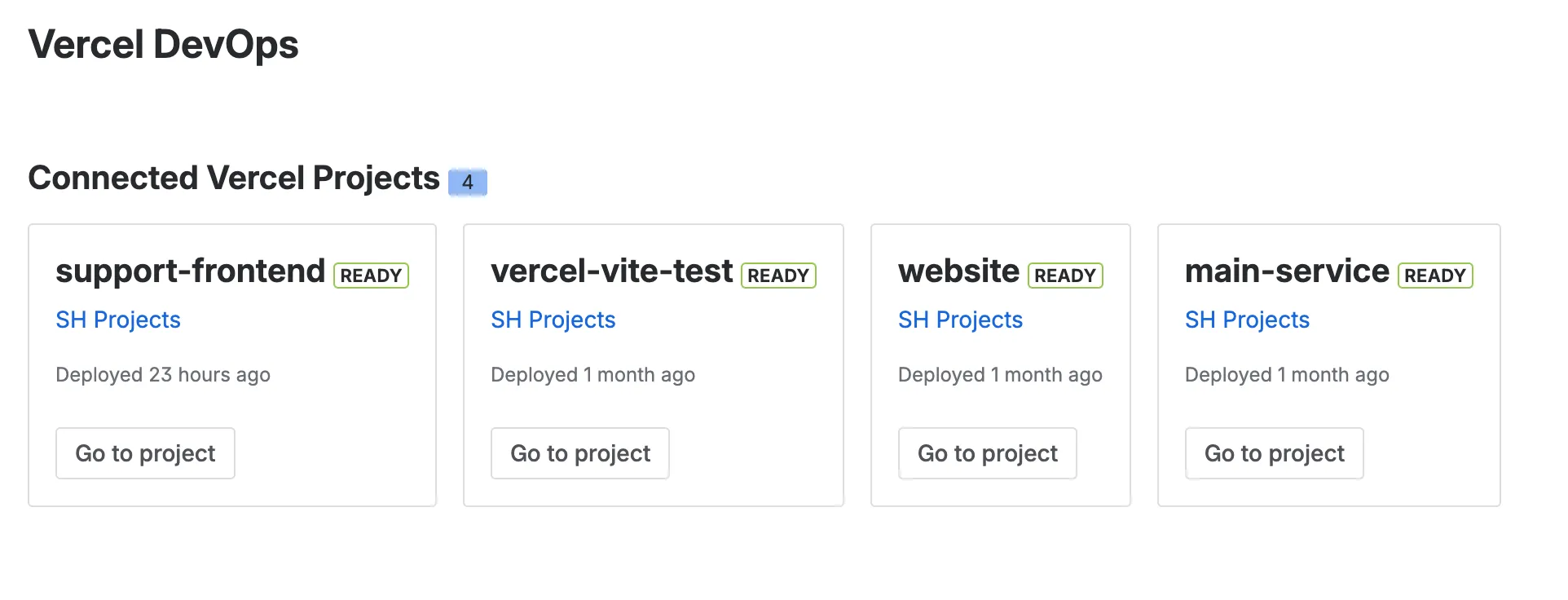
Otherwise, you’ll see a list of connected Vercel projects:
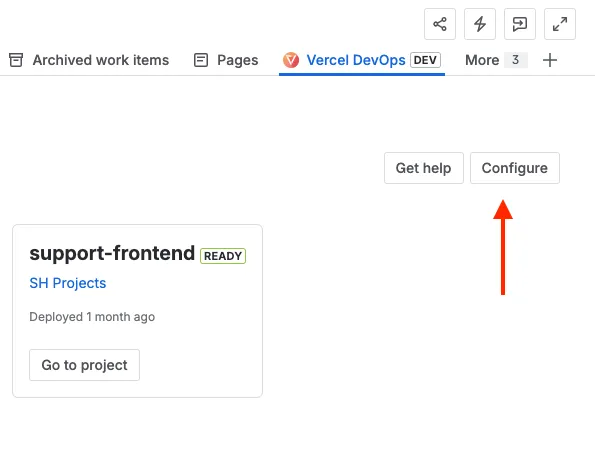
- Either click on “Connect Vercel Projects” (if you haven’t connected any Vercel projects yet) or click on “Configure” in the upper right corner:
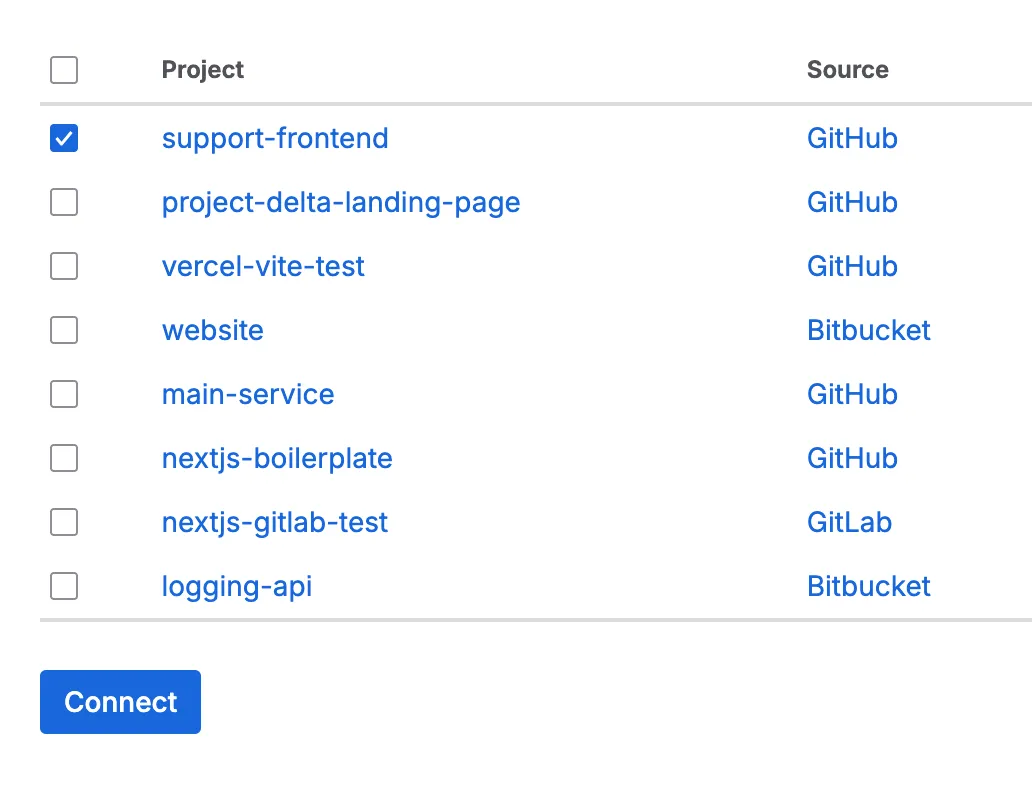
- The project settings page of the app opens where you can select the Vercel projects you’d like to connect to this Jira project:
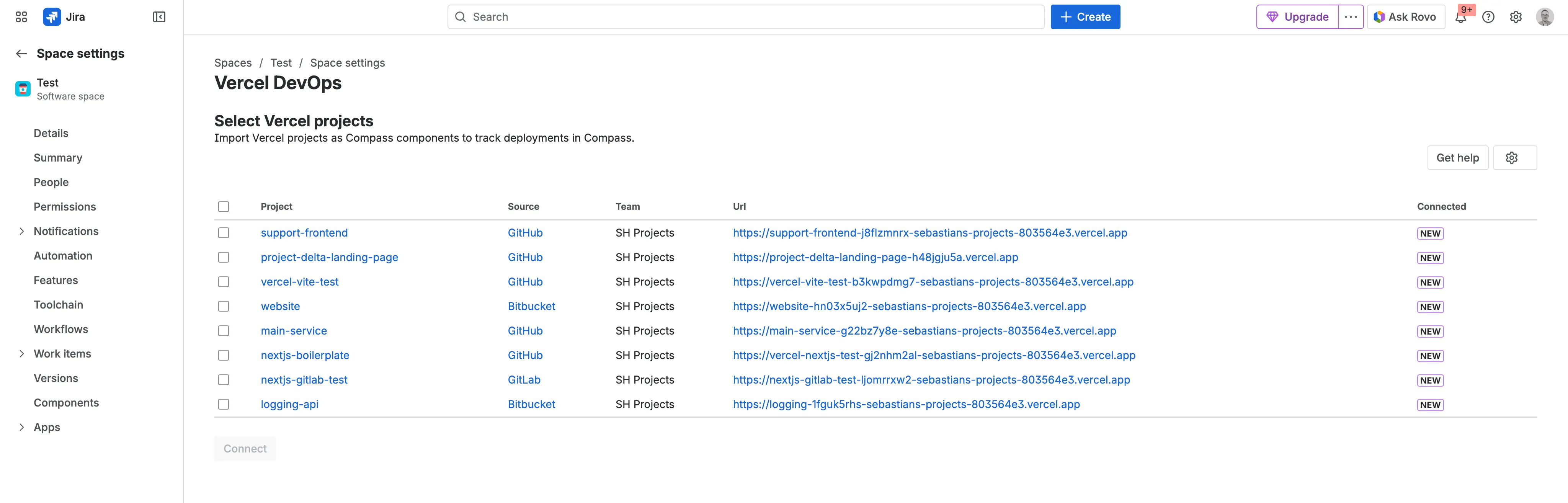
- Click “Connect” to link the selected projects:
After a successful connection, you’ll see a confirmation:
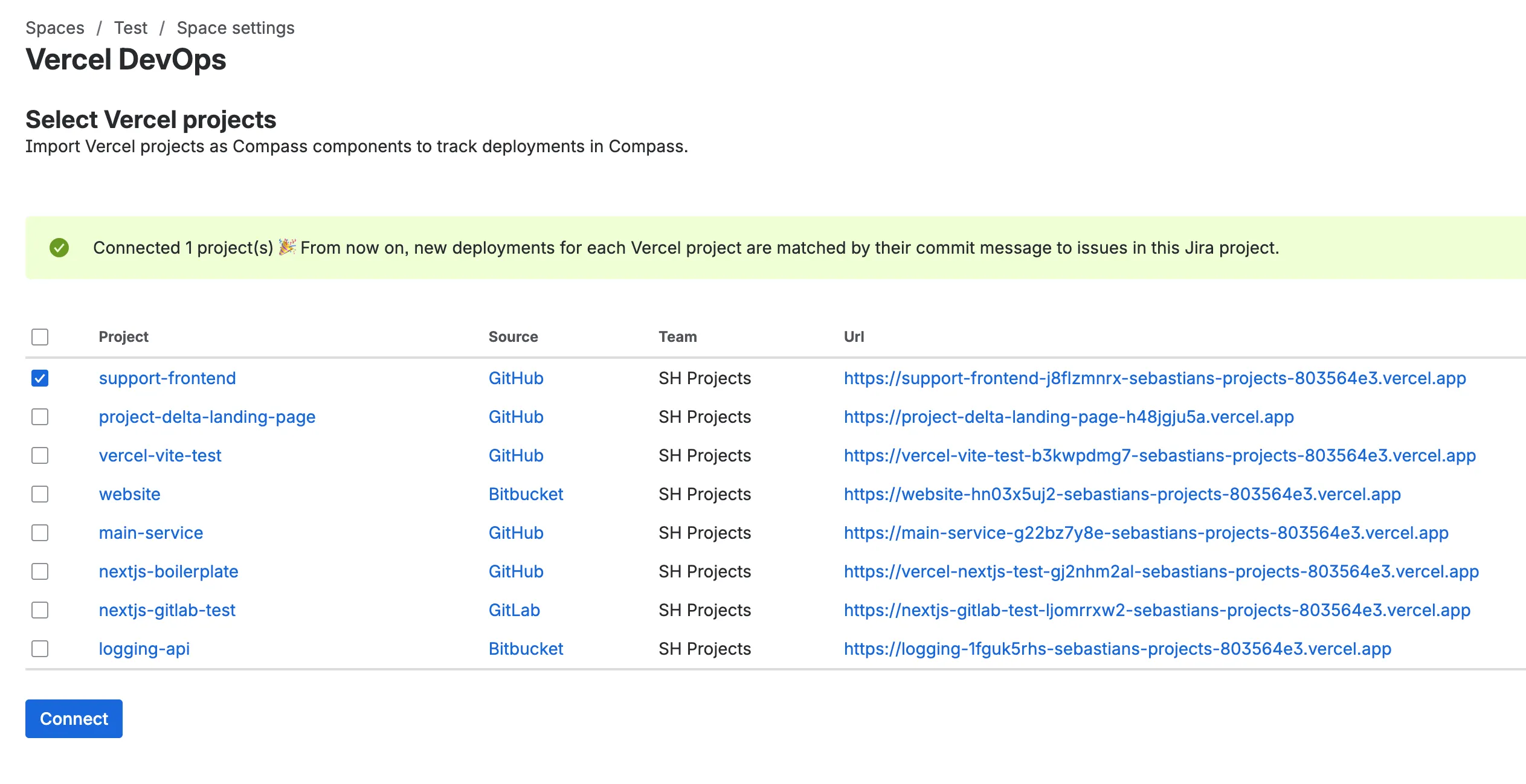
You can change the connected Vercel projects at any time. If you disconnect a Vercel project, the deployment information for this project will stay in Jira but new deployments won’t be tracked anymore.
After connecting your Vercel projects, you can start tracking deployments.