
Track Deployments - Vercel DevOps for Jira
Vercel DevOps for Jira tracks deployments and displays them on Jira issues. When a commit message includes a Jira issue key, the app automatically links the resulting deployment to that issue.
How it works
-
Connect a Vercel project - In a Jira project, open the Vercel DevOps for Jira app and connect one or more Vercel projects (Get Started guide).
-
Reference an issue key in a commit message - When committing code, include a Jira issue key such as
TEST-2in the commit message:

- Deployment appears on the issue - After the deployment completes, Vercel DevOps for Jira scans the commit messages and matches them to Jira issues. The deployment information is then displayed directly on the issue:
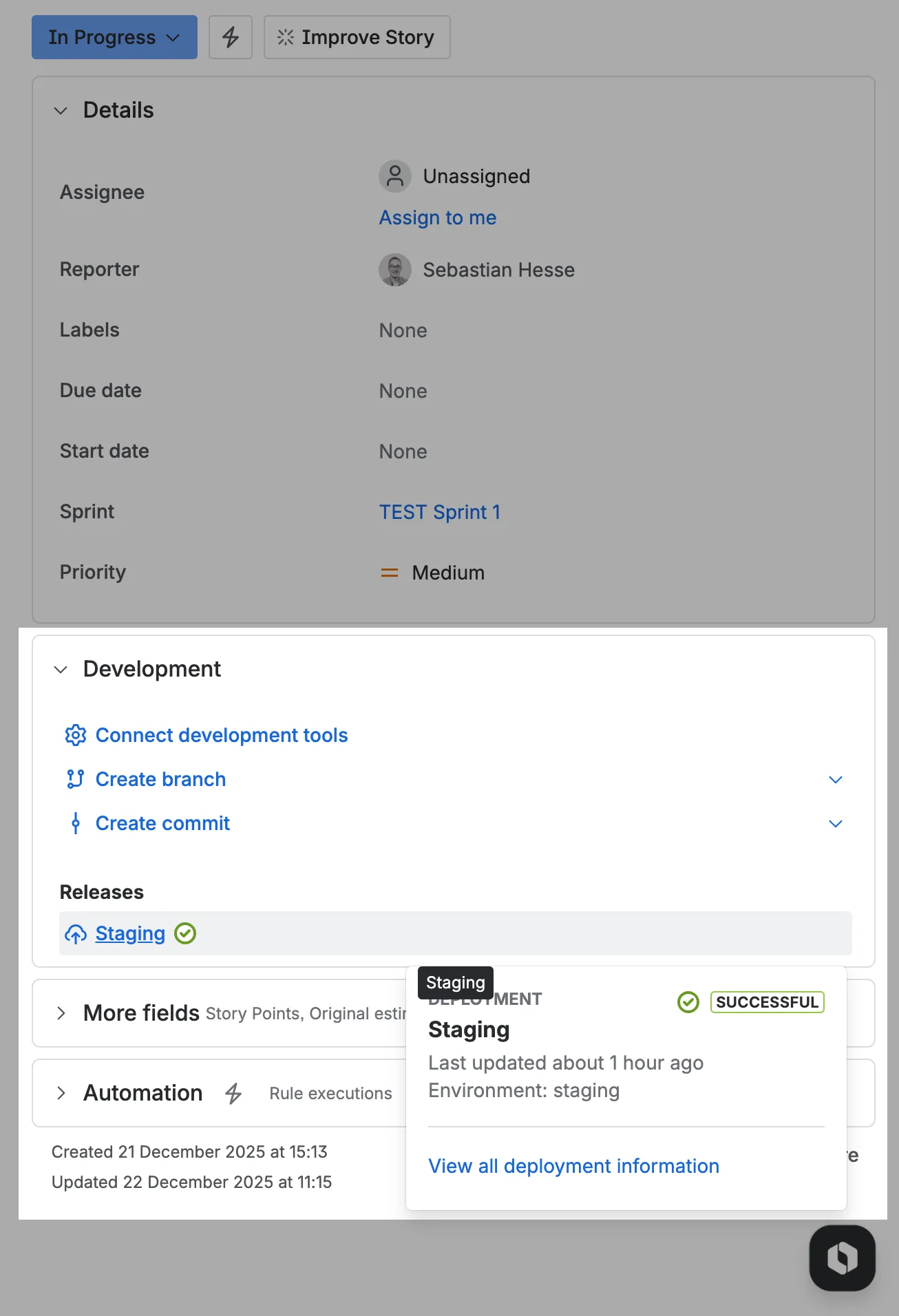
Deployment details
The issue panel shows key information about each deployment:
- Environment - Whether the deployment targets production, preview, or development.
- Status - The current deployment status (e.g. ready, building, error).
- Timestamp - When the deployment was created.
You can view all deployments linked to an issue:
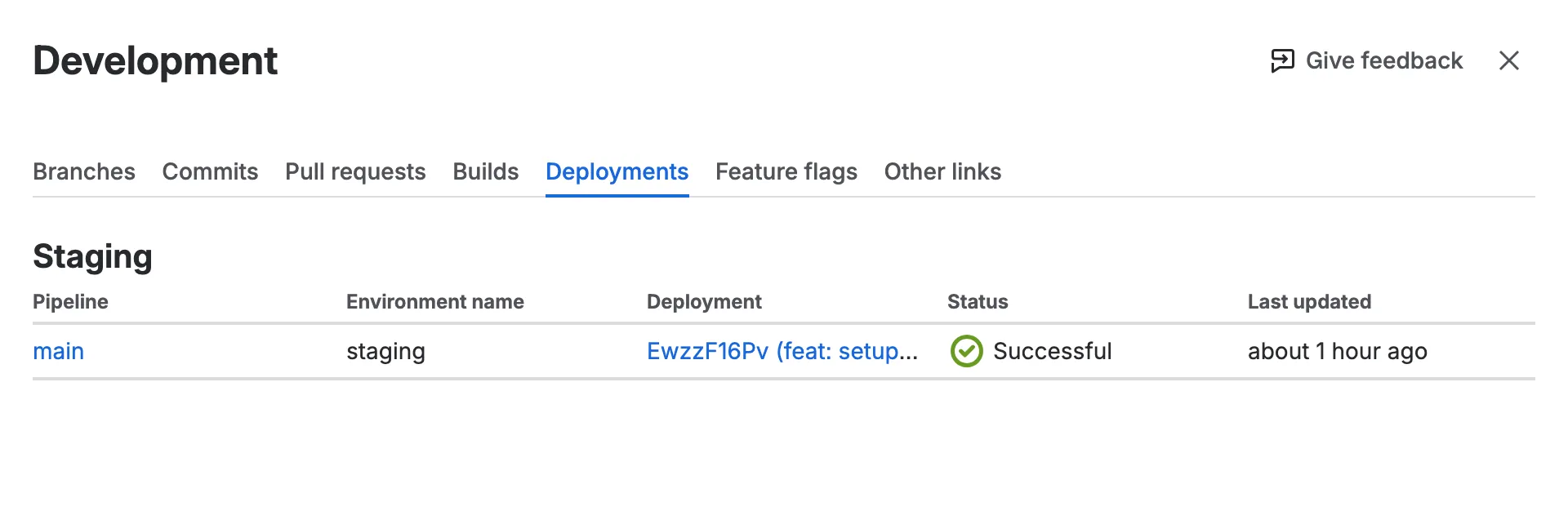
How matching works
The app scans commit messages in each deployment for Jira issue keys (e.g. TEST-2, PROJ-123). If an issue key matches a project connected through the app, the deployment is linked to that issue. This means you can reference multiple issues in a single commit message and the deployment will appear on all of them.