
Get Started - Vercel for Compass
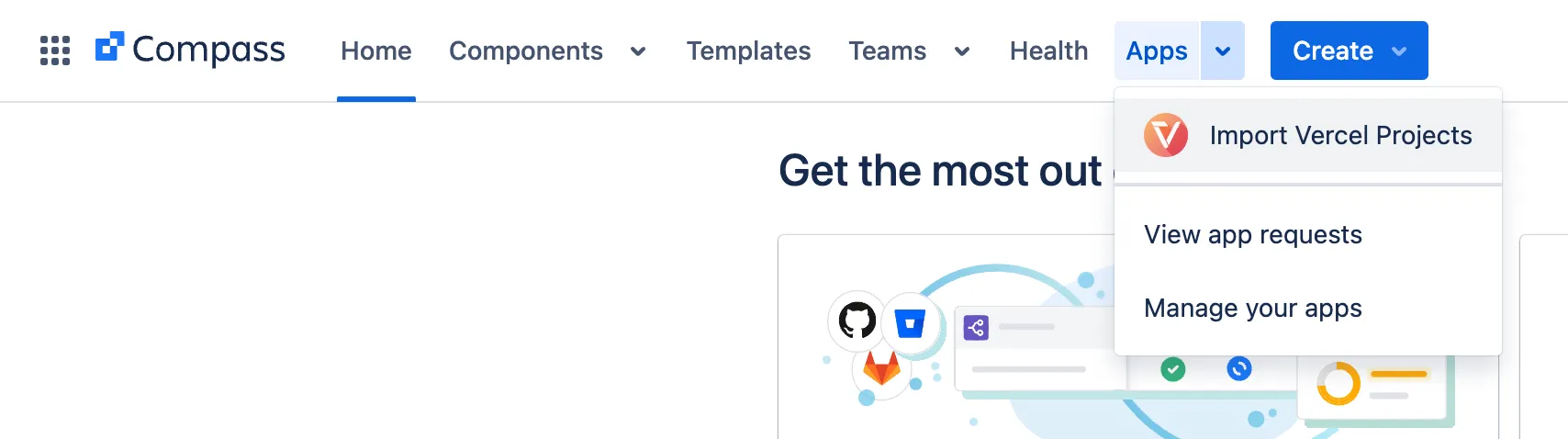
- Open the main page to import Vercel projects in the top navigation bar:
- If you’re using it the first time, the app asks you to provide an API token to access Vercel:
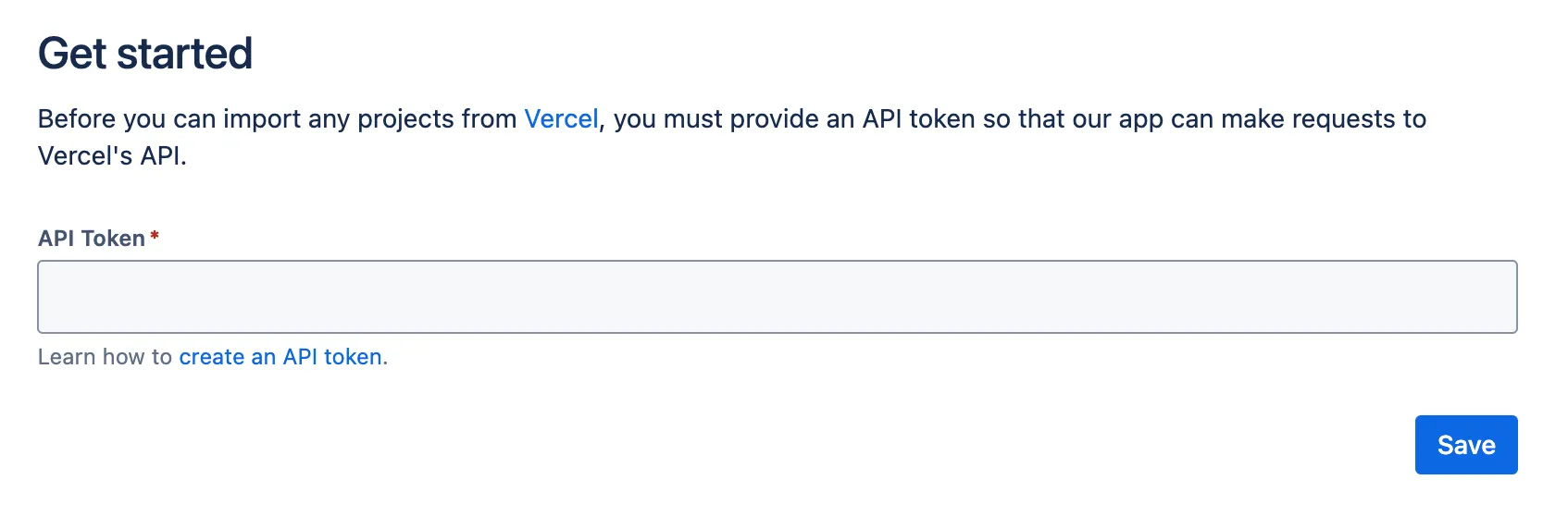
Learn how to create an API token for Vercel.
- After saving it, the page refreshes and shows you a list of projects that you have access to:
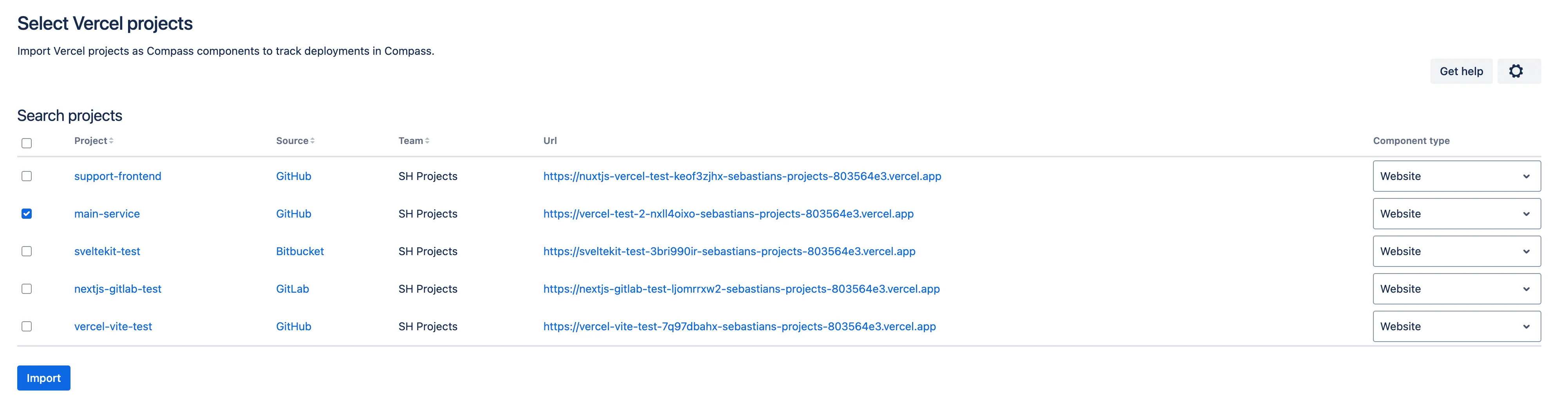
- You can select which projects you’d like to import and which Compass component type it should take. Then click “Import”:
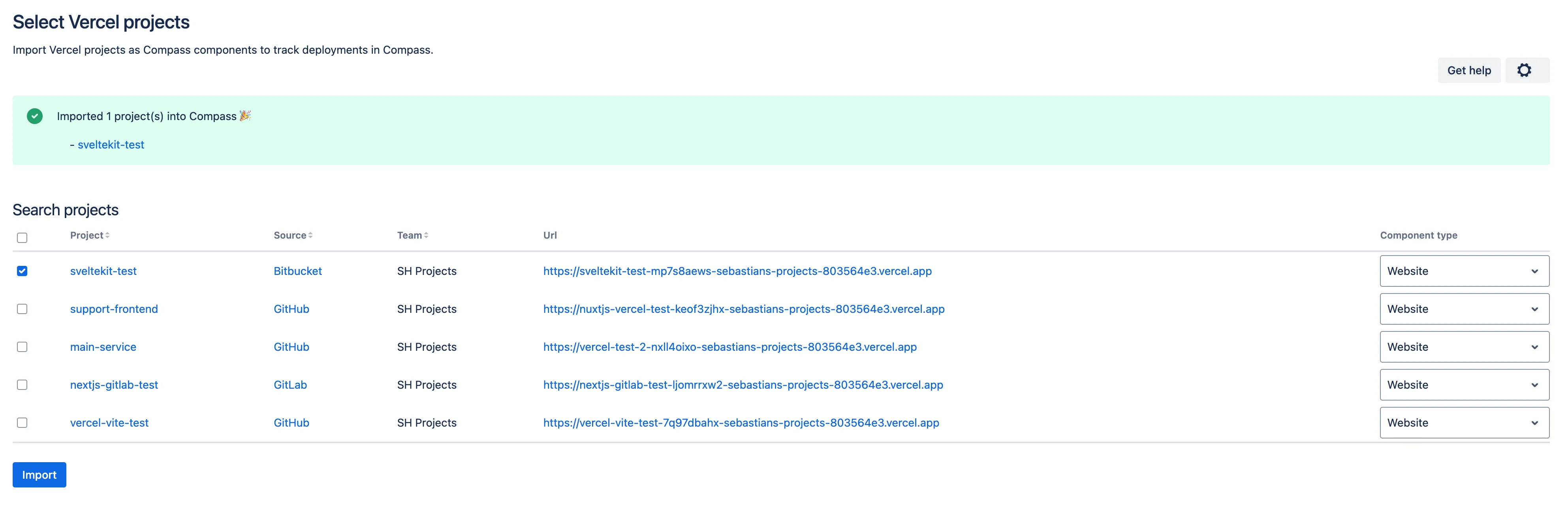
- If everything succeeds, you have imported your first project from Vercel into Atlassian Compass. Congrats 🎉 You can click on the link in the success message and open the component.
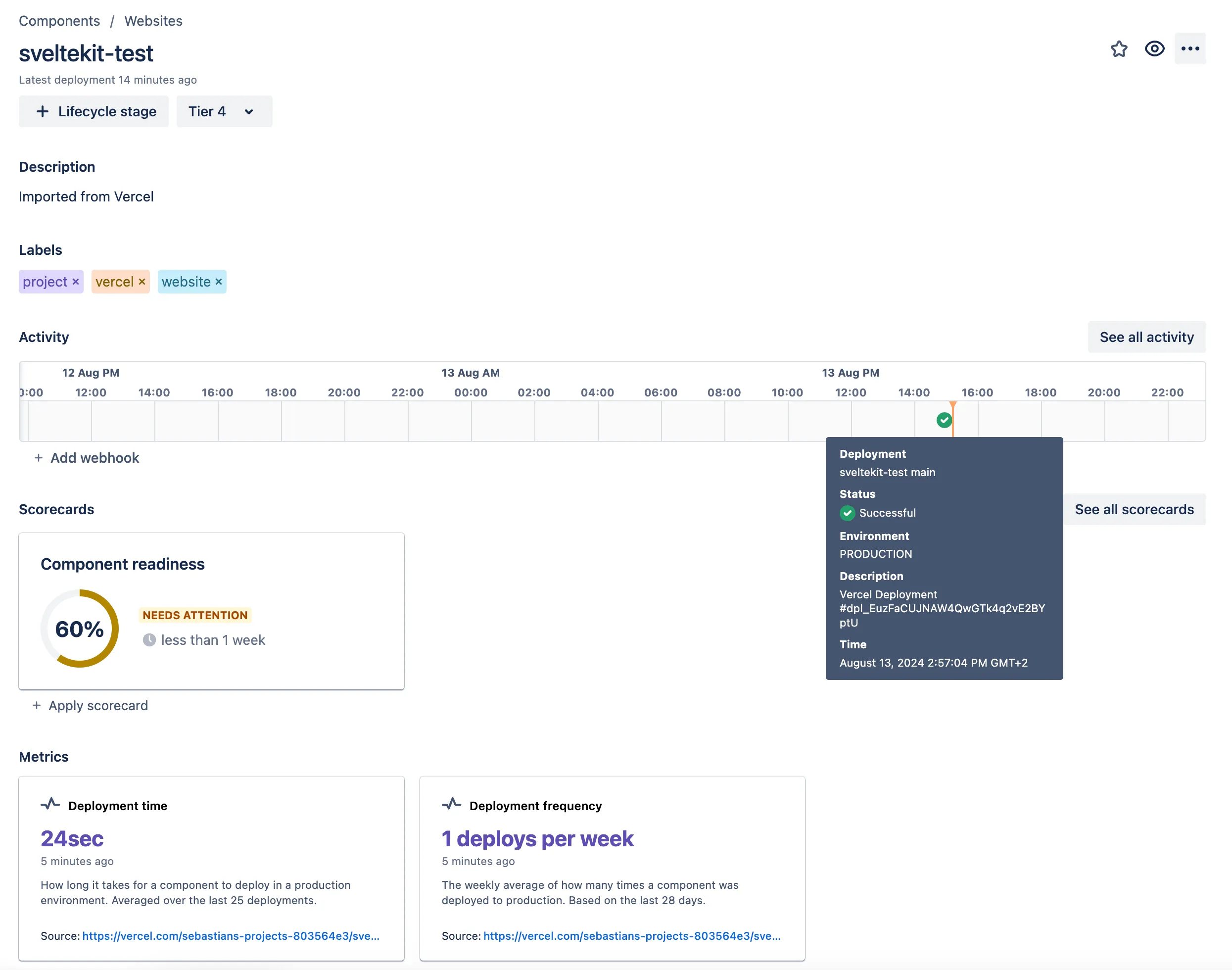
As you can see, the app already imported the latest deployment activity. In addition to that, Compass automatically calculated metrics based on the provided deployment activity.
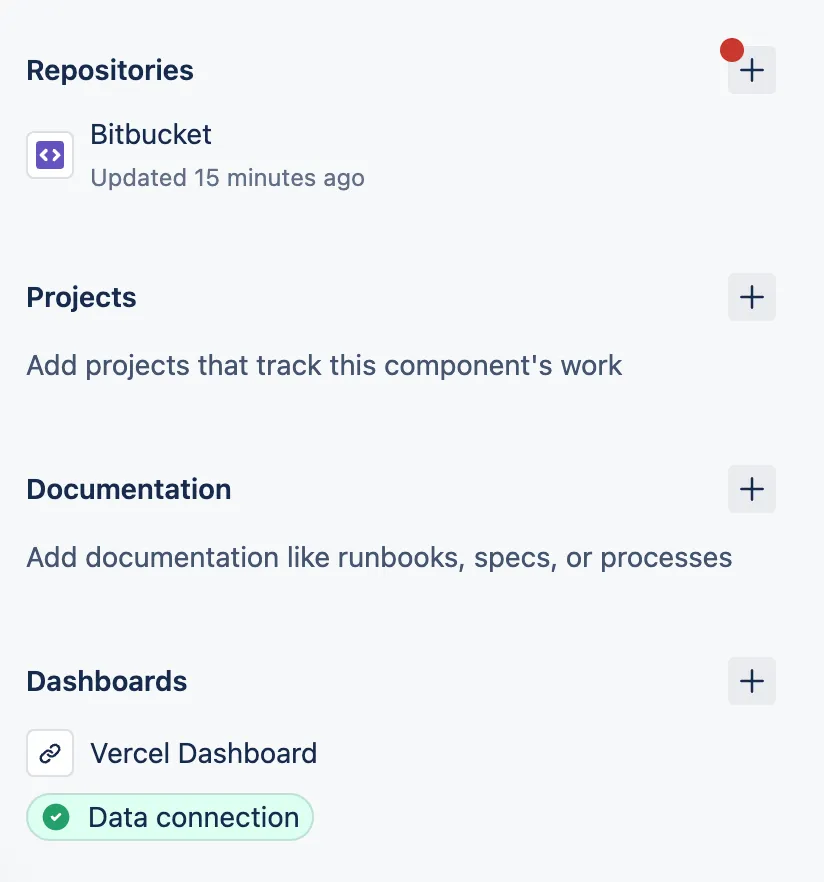
- The app also added links to your component by linking the repository of your project and the project dashboard:
You can now monitor all future deployment activity of your project within Compass. This gets even more interesting the more projects you import.