
Get Started - Component Exporter
-
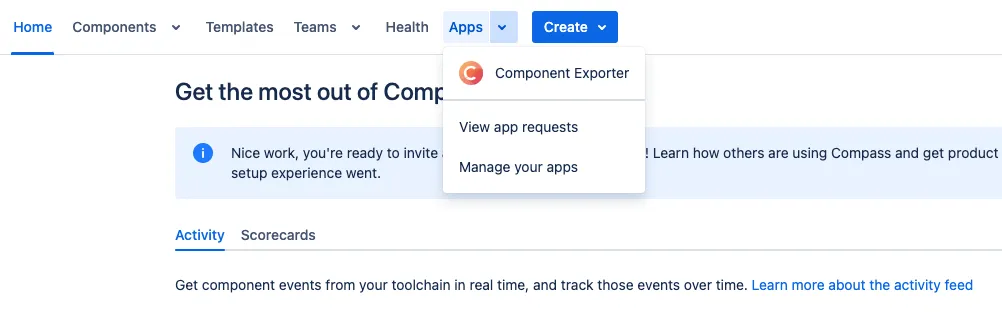
Open the main page to export Compass components in the top navigation bar:
-
If you’re using it for the first time, you’ll see the following get started page:

-
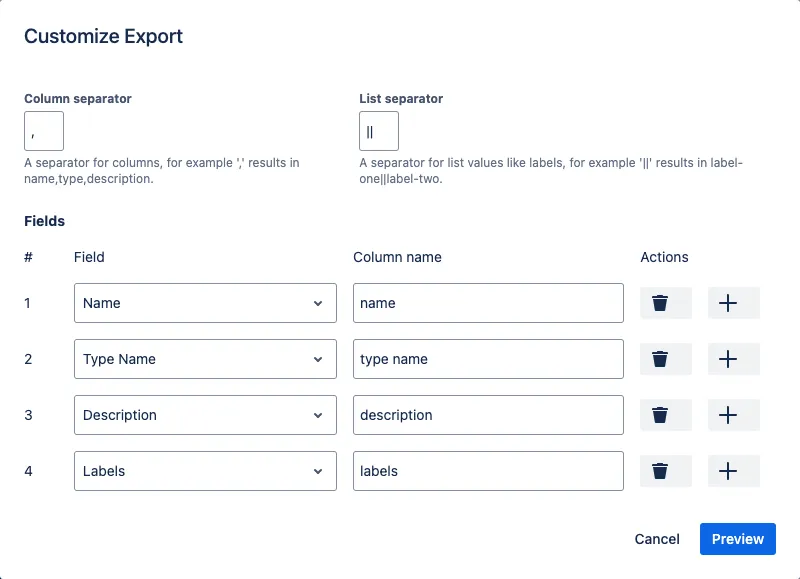
Clicking on New Export opens a dialog to configure the export. For the purpose of this get started guide, just keep the defaults.
-
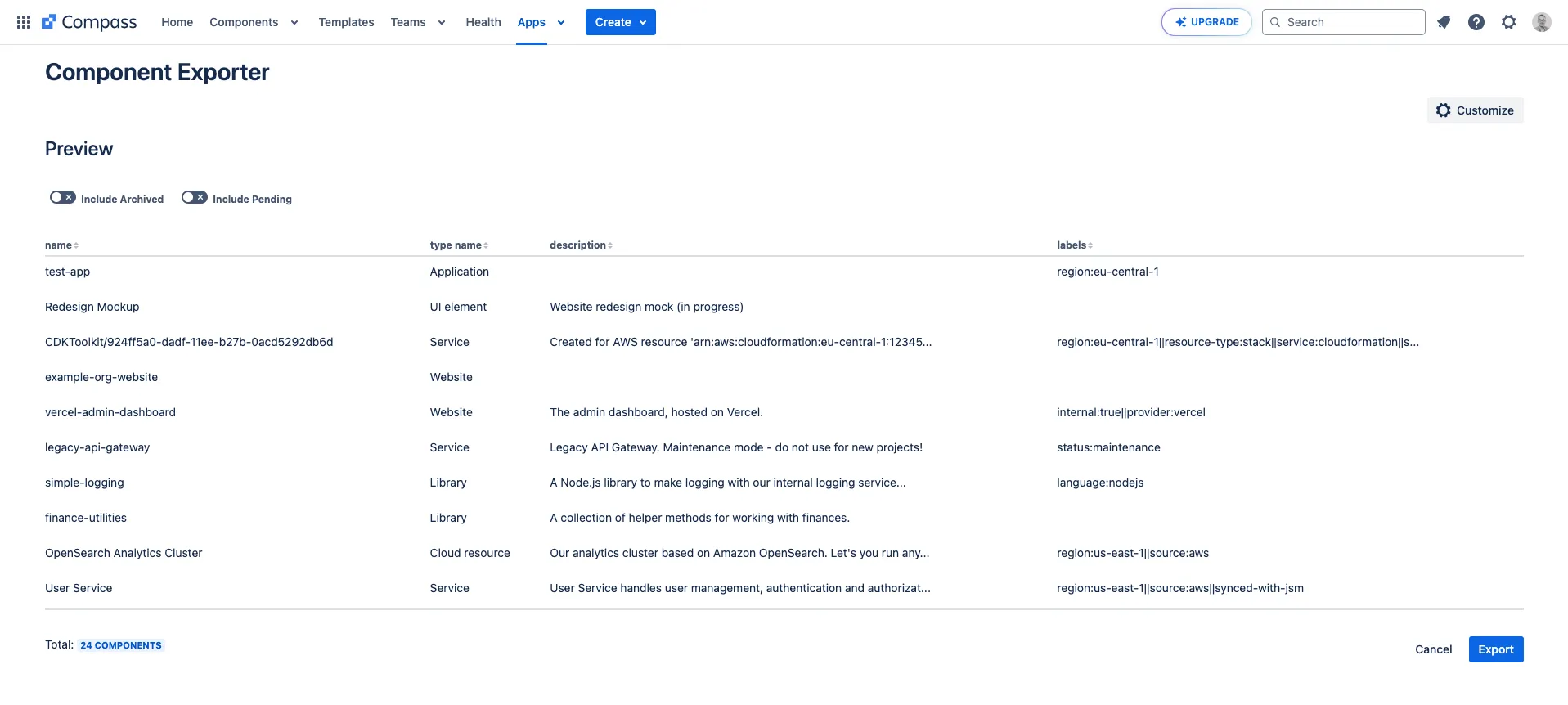
Clicking on Preview closes the dialog and shows a preview of the export. The preview includes 10 random components based on the export configuration.
-
You can further refine the export by using the toggles at the top to include pending or archived components. By default, pending or archived components won’t be included in the export. However, please be aware that even if you enable pending or archived components, the preview might not include them because the preview just shows a random subset of components.
-
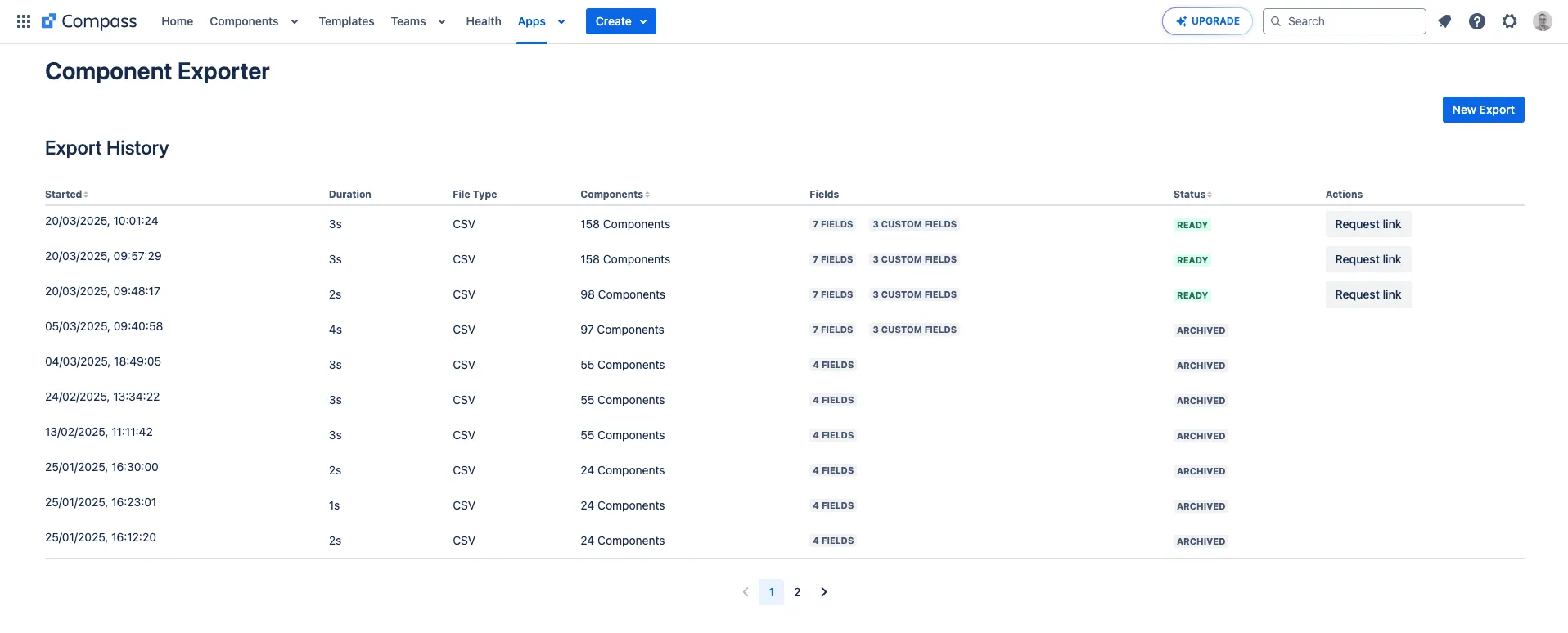
If you’re satisfied with the preview, click on Export at the right bottom. A history of the last exports appears, including your current one.
-
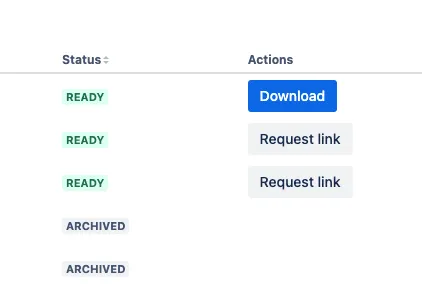
As soon as an export is completed, the status switches to READY and you can request a download link to download the file. This will open a file download in your browser and you can save the file to your computer.
Congratulations! 🎉 You have successfully created your first Compass component export. Now you can explore more details about how to configure an export or which fields are supported for export.
Are you missing an important feature or you are stuck in the process? Just reach out to our support team.